Removing users (Commercial)
Temporarily deactivate or permanently remove a user from your commercial banking contract. Remove access immediately when a user leaves your organization.
This feature is available to administrators only. Removing administrators can only be done by Servus — contact CashManagementAdvisors@servus.ca.
Before you begin:
- Remove user access immediately when an employee leaves your organization to prevent unauthorized access.
- A user can be deactivated temporarily or permanently removed depending on your situation.
Here’s how to remove a user:
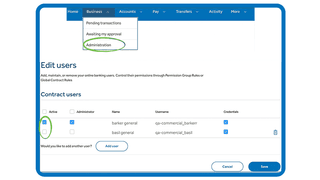
- Select Business from the top menu bar, then choose Administration from the dropdown.
- Select the arrow to open the contract details, then select the pencil icon on the Users feature.
- Locate the user in the Contract users listing.
- To temporarily deactivate: uncheck the Active checkbox. The user will be removed from their permission group and appear under “Users not included in a permission group” until reassigned.
- To permanently remove: select the Delete icon (garbage can). Confirm deletion when prompted. This permanently removes the user’s profile and access.
- Select Save, then Continue and Refresh to apply the contract changes.
Temporary vs permanent removal:
Temporary deactivation is recommended when a user is moving to a new permission group or taking a leave of absence. Permanent removal should be used when a user leaves the organization. Users removed after receiving the welcome email but before completing first-time login will get an error if they attempt to use the access link.
More admin
Creating permission groups (Commercial)
Permission groups control how users access accounts, perform transactions, and approve activity. Set up groups that match your organization’s structure and access requirements.
Adding accounts (Commercial)
Your contract starts with the accounts you choose to include. Get step-by-step instructions to add accounts and set the ones you use most as main accounts.
Approval workflow (Commercial)
See how the system evaluates a transaction from sign-in through final approval. Get step-by-step explanations and learn how to assign sign types to your users.

We're here for you every step of the way.
Check out our support centre for step-by-step instructions on new and returning features.
- Schedule a call
Send us an email
Email us and we’ll respond within one business day.
Phone:
Give us a call at 1.877.378.8728 to speak with someone right away.